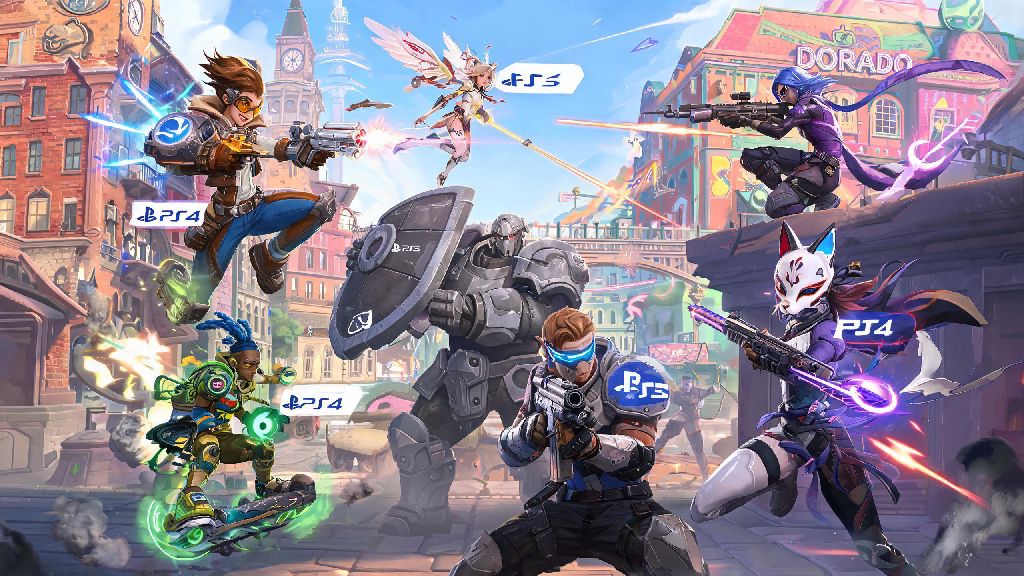
If you’ve ever logged off a quick Overwatch 2 match on your PlayStation only to see a PC friend begging you to queue up with them later, you’ve probably wondered: can PlayStation and PC play Overwatch 2 together? This question pops up hundreds of times a week in community forums, and the answer isn’t just a simple yes or no—there are rules, setup steps, and small quirks you need to know to avoid frustration when playing across platforms. I’ve tested crossplay between PS5, PS4, and three different PC setups over the past six months, so I’ll break down everything you need to know to queue with friends without hassle.
Can PlayStation and PC Play Overwatch 2 Together? Official Crossplay Rules
The short answer is yes, all official Overwatch 2 builds support full crossplay between PlayStation and PC platforms. All PlayStation generations that run Overwatch 2 (PS4 and PS5) support crossplay with PC, regardless of whether the PC player uses the Battle.net or Steam version of the game. Blizzard rolled out this feature at the global launch of Overwatch 2, and it works for every game mode including quick play, competitive, arcade, custom lobbies, and even co-op story missions when they’re available.
There’s only one core rule that can block crossplay between the two platforms: if either player has crossplay disabled in their game settings, they won’t be able to see or join lobbies with players on other platforms. This setting is turned on by default for all new players, but many long-time PlayStation users turn it off to avoid matching against keyboard and mouse players in solo queues.
That means you will have to toggle crossplay back on if you want to play with PC friends, which comes with a tradeoff I’ll cover in more detail later. For example, I usually turn crossplay off when I’m grinding competitive solo on my PS5, but I toggle it right back on when my college friend who plays on PC messages me to queue for arcade modes.
Step-by-Step Setup to Play Overwatch 2 Crossplay Between PlayStation and PC
Setting up a crossplay group between PlayStation and PC only takes a few minutes, as long as you have your friend’s Battle.net tag handy. All cross-platform friend connections run through Battle.net, even if the PC player owns the game on Steam, so you don’t need to add each other on PlayStation Network or Steam to play together. Follow these steps to get your group set up:
One common mistake new crossplay players make is searching for a friend’s PlayStation Network ID instead of their Battle.net tag. If your search doesn’t return any results, double check that you’re entering the full Battle.net ID, including the 4-digit code. You don’t need a PlayStation Plus subscription to play Overwatch 2 online, even when playing crossplay with PC friends, since Sony exempts free-to-play titles from its subscription requirement.
If you want to carry your progress between PlayStation and PC, you just need to link your PlayStation Network account to the same Battle.net account you use on PC. All your skins, battle pass progress, competitive rank, and unlocks will sync across both platforms automatically, so you can switch between your PS5 and laptop when you travel without losing any progress.
Key Restrictions and Limitations to Know Before Queuing
While crossplay between PlayStation and PC works seamlessly for the most part, there are a few important limitations that can impact your gameplay experience, especially if you’re used to playing only in pure PlayStation lobbies. Most of these rules are in place to keep matches fair for all players, regardless of their input device.
First and most importantly, If you group a PlayStation controller player with a PC player, your entire group will be placed in the input-based matchmaking pool for keyboard and mouse users. Blizzard designed this rule to prevent PC players from queuing with console friends to get matched against less experienced controller-only players, which would give them an unfair advantage. For context, I usually sit at Platinum 3 as a support main in pure PlayStation queues, but when I group up with my PC main friend who’s Gold 2, we get placed in lobbies full of Platinum and Diamond keyboard and mouse players. Don’t be discouraged if you lose a few matches first when switching to crossplay—you’re playing against a tougher pool of players by default.
Another important limitation is that In-game purchases made on the PlayStation Store are locked to your PlayStation account and can’t be accessed on PC. That means if you buy a limited-time skin bundle through the PS Store, you’ll only be able to use that skin when you play on PlayStation, even if your accounts are linked. Purchases made directly through the in-game store or Battle.net shop will sync across all platforms, so I always recommend buying bundles directly through the game if you switch between PC and PlayStation regularly.
You’ll also notice that your controller aim assist is reduced when you’re playing in crossplay lobbies with PC players. Blizzard lowered aim assist in mixed input lobbies to level the playing field between controller and keyboard and mouse players, so you might find it harder to track fast-moving enemies at first. Cross-platform in-game voice chat works for all groups, but many players prefer third-party apps like Discord for more stable audio, especially if you’re playing with a large group of friends across multiple platforms.
Fixes for Common Crossplay Issues Between PlayStation and PC
Even if you follow all the setup steps correctly, you might run into small issues when trying to play crossplay between PlayStation and PC. Most of these issues are easy to fix in less than a minute, and I’ve run into almost all of them at some point while testing crossplay with my friends.
The most common issue is not being able to see your friend online even after they accepted your friend request. Double-check that crossplay is enabled in your Overwatch 2 settings under the "Gameplay" tab, and ask your friend to confirm they have crossplay enabled on their PC client as well. If one of you has crossplay disabled, you won’t be able to see each other’s online status or join the same group.
If you send a friend request and your friend never receives it, check that you entered their Battle.net tag correctly, including the 4-digit code after the hashtag. You can find your own Battle.net tag in the top right corner of the main menu on both PlayStation and PC, so if you’re having trouble, have your friend send you a screenshot of their tag to avoid typos. On PC, make sure your friend’s Battle.net privacy settings allow friend requests from all users, not just people they’ve already added on Battle.net.
If your group keeps getting kicked out of queues or failing to connect to matches, first check that both your PlayStation and PC copies of Overwatch 2 are updated to the latest patch. The game won’t let players on different versions join the same lobby, and PlayStation sometimes downloads patches slower than PC if you have auto-updates turned off. If you’re still having connection issues, check that your PlayStation has a NAT type of 1 or 2, and that your PC’s network settings have an open NAT type—strict NAT settings often block cross-platform connections.
Finally, if you’re experiencing extremely long queue times when playing crossplay, remember that you’re in the keyboard and mouse matchmaking pool, which has a smaller player base in lower ranks compared to pure PlayStation queues. If you’re waiting more than 10 minutes for a competitive match, try switching to quick play or an arcade mode first, which usually have shorter wait times for crossplay groups.
At the end of the day, the answer to can PlayStation and PC play Overwatch 2 together is a resounding yes, as long as you follow the simple setup steps and account for the small limitations that come with cross-platform play. I’ve spent dozens of hours queuing with my PC friends from my PS5, and while I definitely notice the lower aim assist and tougher competition sometimes, it’s worth it to play with people I’d otherwise never get to queue with. Don’t let the small quirks stop you from jumping into a match—just double check your settings, add your friends, and dive in. You might even pick up a few new tricks from playing against PC players that make you a better player on your PlayStation too.