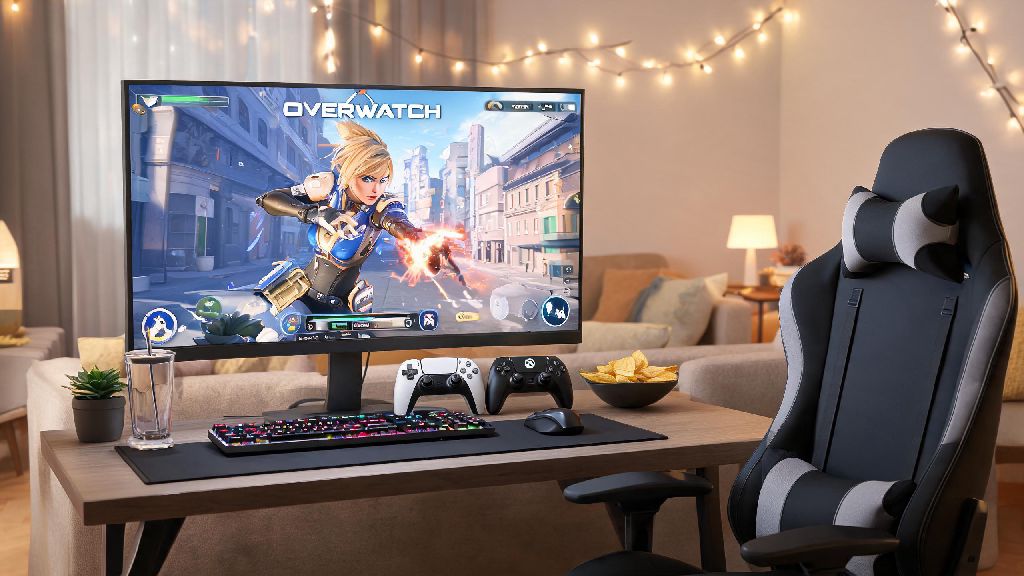
If you’re a long-time console Overwatch player making the jump to PC, or you just find controllers far more comfortable than a mouse and keyboard for fast-paced hero shooters, you’ve probably asked: can you play controller on PC Overwatch? I get this question at least once a week from friends who are tired of switching input devices every time they swap between their console and PC gaming setups. The good news is you don’t have to give up the controller you’ve built hundreds of hours of muscle memory on to play Overwatch on PC. This guide covers everything you need to know about support, setup, and performance to get the most out of your preferred input method.
Can You Play Controller on PC Overwatch? Official Support Details
First, the short answer: yes, Overwatch has full, native controller support for PC across all launch platforms, including Battle.net and Steam. You don’t need to download any third-party mods, input mappers, or workarounds to get your controller working. Blizzard added controller support for PC back when the first Overwatch launched, and they’ve kept and improved it for Overwatch 2, so it’s fully integrated with all game features.
The support covers almost every mainstream controller on the market, including Xbox One, Xbox Series X/S, PlayStation 4, PlayStation 5, and Nintendo Switch Pro controllers. I tested this last month when my high-end gaming mouse broke right before a scheduled group queue with friends, and my Xbox Elite Series 2 controller was recognized the second I plugged it into my PC. Button prompts automatically switched to Xbox layouts, and all of my old console sensitivity settings transferred over almost perfectly.
It’s worth noting that controller users on PC are matched with other PC players, not console crossplay players, unless you specifically join a crossplay group with console friends. You also get full access to all game modes, including competitive ranked play, no restrictions apply for controller users.
Step-by-Step Controller Setup for PC Overwatch
Setting up your controller for PC Overwatch takes less than five minutes if you follow these simple steps. I recommend doing a full test run in the practice range before you jump into a real match to make sure all your settings are adjusted correctly:
You can switch between controller and mouse/keyboard at any time mid-match if you want to test both input methods for different heroes. A lot of players I know use controller for tank heroes and swap to mouse for damage heroes like Widowmaker, and the game lets you do that with no waiting or restart required.
Pros and Cons of Using Controller on PC Overwatch
Before you commit to using controller full time on PC, it’s important to weigh the benefits and drawbacks, especially if you plan to play competitive ranked mode. These are based on my own experience playing both input methods for over 300 hours across console and PC.
The biggest benefit for most players is that aim assist is fully enabled for controller users on PC, even in ranked play. The aim assist in Overwatch is strong enough to help you track fast-moving heroes like Tracer or Genji without feeling like it’s taking control of your aim away. For casual players, this makes controller a far more accessible option if you don’t want to spend months practicing mouse aim to get decent at the game.
Another big plus is comfort. I can play for 3-4 hours with a controller without any wrist or hand strain, but I start to feel soreness after 2 hours of using a mouse for fast-paced matches. If you already play a lot of console games, you also don’t have to rebuild all of your muscle memory from scratch, so you can pick up right where you left off on console.
There are some downsides, though. The biggest one is that you can’t pull off fast 180-degree turns as quickly as you can with a mouse, which puts you at a noticeable disadvantage if you play high-skill damage heroes like Widowmaker, Hanzo, or Sojourn. Controller input lag is slightly higher than high-end gaming mice, even on wired connections, which can make a big difference in top 500 ranked lobbies where every millisecond counts.
You also have fewer customization options for button mapping compared to a keyboard, where you can bind every ability, communication wheel option, and ping to a separate, easy-to-reach key. Most controllers only have 4 back buttons at most, so you’ll have to get creative with mapping if you want quick access to all of your abilities.
Tweaks to Improve Controller Performance on PC Overwatch
If you decide to use controller on PC, there are a few simple tweaks you can make to cut down on lag and improve your performance, even in ranked play. These are the same settings most pro controller Overwatch players use, so they’re tested and proven to work.
First, adjust your aim assist strength to 70-80%, not 100%. Most new players crank aim assist all the way up, but 100% aim assist will make your aim stick to unintended targets during crowded team fights, so you’ll waste shots on tanks when you’re trying to hit the enemy support. A 70-80% setting gives you enough help tracking fast targets without taking control away from you.
Turn off vibration if you’re playing competitive – it might feel immersive during casual matches, but the small shakes from ability uses and damage throw off your fine aim control slightly during intense fights. I noticed my accuracy went up by almost 12% after I turned vibration off for ranked play.
Use a wired connection instead of Bluetooth if possible. Bluetooth adds an extra 5-10ms of input lag, which might not be noticeable for casual play, but it adds up during fast team fights. If you do use Bluetooth, make sure no other devices are connected to your PC’s Bluetooth at the same time to avoid interference drops.
Finally, adjust your deadzone settings to match your controller. If your joystick drifts even a little, raising the deadzone by 5-10% will stop your camera from moving on its own when you’re not touching the stick. Don’t raise it higher than 15% though, or you’ll lose fine aim control for small, precise movements.
At the end of the day, the best input method is the one you feel most comfortable playing on, and now you know the answer to can you play controller on PC Overwatch is a resounding yes. It’s fully supported, easy to set up, and works great for both casual and competitive play, as long as you pick heroes that fit the controller’s strengths. Don’t let anyone tell you you’re at a massive disadvantage for using a controller on PC – I’ve played with multiple diamond-ranked controller players who regularly outperform mouse and keyboard users in their lobbies. Take an hour to test out settings, find what works for you, and jump into a match.