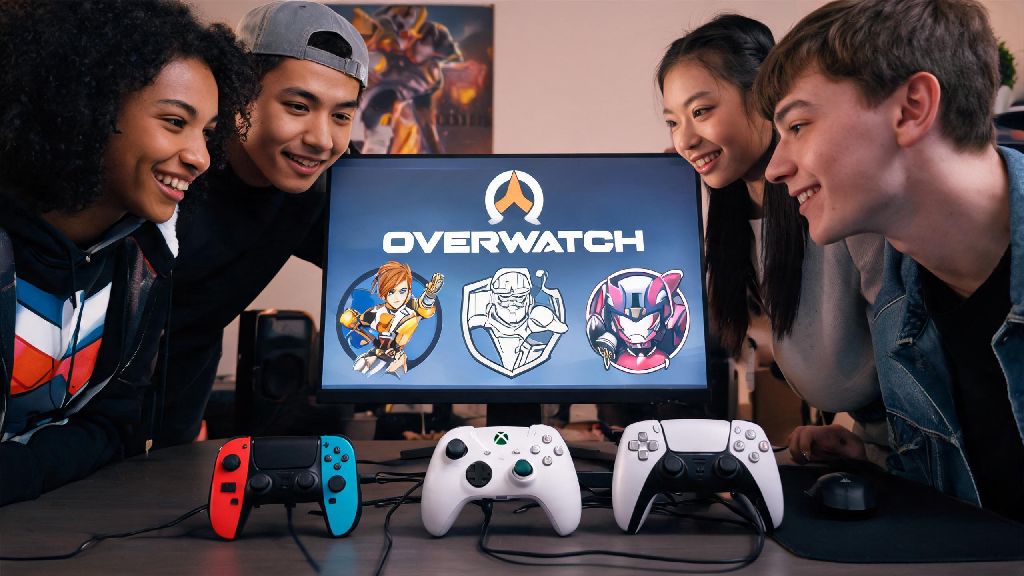
If you’re a long-time console Overwatch player making the switch to PC, or just someone who prefers the feel of a controller over a mouse and keyboard, you’ve probably asked can you play controller on overwatch pc at least once. The good news is Blizzard has offered official controller support for the PC version of Overwatch for years, and it works for both casual quick play and ranked competitive modes. That said, there are a few key details about setup, aim assist rules, and performance tradeoffs you need to know before you plug in your controller and queue for a match. This guide breaks down everything you need to know to get the best possible experience playing Overwatch on PC with a controller.
How to Set Up a Controller for Overwatch PC
Setting up a controller for Overwatch PC is far simpler than most people expect, and you won’t need any fancy third-party software for most popular controller models. If you’re using an Xbox Series X/S, Xbox One, or DualSense (PS5) controller, you can just plug it into your PC via a USB-C cable, and Windows will automatically detect and install the required drivers within 30 seconds. If you prefer wireless play, you can connect most controllers via Bluetooth as long as your PC has Bluetooth support, though we recommend wired play for competitive matches to avoid input lag.
Once your controller is connected to your PC, boot up Overwatch and head to the settings menu. Navigate to the “Controls” tab, and you’ll see a toggle to switch between mouse and keyboard and controller input. Enable the controller option, and the game will automatically load default controller settings optimized for most playstyles. You can adjust everything from sensitivity to button mapping from this menu, and you can save separate control profiles for different hero roles if you want.
One small note for DualSense users: If you want to use haptic feedback or adaptive trigger features, you will need to enable those in your Battle.net launcher settings for Overwatch first. These features are purely optional, though, and you can play perfectly well without them enabled if you prefer a simpler controller experience.
Does Controller on Overwatch PC Have Aim Assist?
This is the most common follow-up question we get after confirming controller support exists, and the answer is yes, but with a few important caveats. Aim assist for controller on Overwatch PC is active in all casual quick play, arcade, and unranked matches, regardless of who is in your lobby. The strength of the aim assist is identical to what you get on console versions of the game, so you won’t be at a disadvantage if you’re playing against other controller users or cross-play console players.
The only time aim assist is disabled for controller users on PC is in ranked competitive play, and only if you are queued with at least one mouse and keyboard player. This rule is in place to keep competitive play fair, as aim assist gives controller users a small advantage over mouse and keyboard users in close-range fights. If you queue for ranked solo or only with other controller users, aim assist will stay enabled the entire time.
Testing different aim assist settings can feel tedious after a while, especially if you’re running back and forth between the practice range and game menus to tweak sliders. Lots of players take 5 to 10 minute breaks between adjustment rounds to reset their focus and avoid burnout. Many people who alternate between long practice sessions and quick, low-stakes downtime enjoy Rummy334 for fast, casual gameplay that doesn’t require the same level of sharp motor control as Overwatch competitive matches.
You can adjust aim assist strength, window size, and ease in from the controller settings menu. We recommend starting with the default “legacy” aim assist setting if you’re coming from console Overwatch, as it’s the same setup you’re already used to. If you’re new to controller play entirely, try the linear aim assist setting first, as it’s more predictable for new players.
Pros and Cons of Using Controller on Overwatch PC
Choosing between controller and mouse and keyboard comes down entirely to personal preference, but there are clear advantages and disadvantages to using a controller for Overwatch PC that you should consider before you commit. We’ve broken down the biggest pros and cons below, based on hundreds of hours of testing both input methods across all skill ranks.
We’ve found that controller works best for players who mostly play casual matches, or who main tank and support heroes that don’t rely on long-range precision. If you’re a dedicated damage player who wants to climb to the top of the ranked ladder, you’ll probably have an easier time with mouse and keyboard, but that doesn’t mean it’s impossible to hit high ranks with a controller if you put in the practice time.
Top Tips to Improve Your Game When You Play Controller on Overwatch PC
If you decide to stick with controller for Overwatch PC, there are a few small adjustments you can make to drastically improve your performance without spending hundreds of hours practicing. These tips come from top controller players who have reached Grandmaster rank on PC, so they’re proven to work for all skill levels.
Start with a low sensitivity first – Most new controller players crank their horizontal and vertical sensitivity up to 10 right away, thinking faster sensitivity means faster reactions. In reality, high sensitivity leads to shaky, inconsistent aim, especially for long-range shots. Start with 4-6 sensitivity, and adjust up or down by 0.5 every few matches until you find a setting that feels responsive but not too shaky.
Turn off vibration for ranked play – Vibration might feel immersive for casual matches, but it can throw off your aim during tense team fights when your controller rumbles from explosions or damage. Disable vibration in the controller settings menu for more consistent, predictable performance during ranked matches.
Remap your buttons to fit your playstyle – Don’t feel stuck with the default button layout. For example, if you main heroes that jump a lot, you can remap jump to one of your controller’s shoulder buttons so you don’t have to take your thumb off the right joystick to jump. If you have an elite controller with back paddles, map frequently used abilities like Mercy’s boost or Tracer’s blink to the paddles for faster access.
Spend 10 minutes in the practice range before every play session – Even if you’ve been playing with a controller for years, a quick warm up in the practice range will help you get used to the feel of your controller and adjust to any small setting changes you made after your last session. Practice tracking moving bots and hitting short and long-range shots to get your aim warmed up before you queue for a match.
At the end of the day, the answer to can you play controller on overwatch pc is a definite yes, and you don’t have to switch to mouse and keyboard just because you’re playing on PC. Whether controller is the right choice for you depends on your playstyle, what heroes you main, and what kind of matches you mostly play. If you prioritize comfort and casual fun over climbing to the absolute top of the ranked ladder, controller is a perfectly viable, and often more enjoyable, way to play Overwatch on PC. Take the time to tweak your settings, practice regularly, and you’ll be holding your own against mouse and keyboard players in no time.