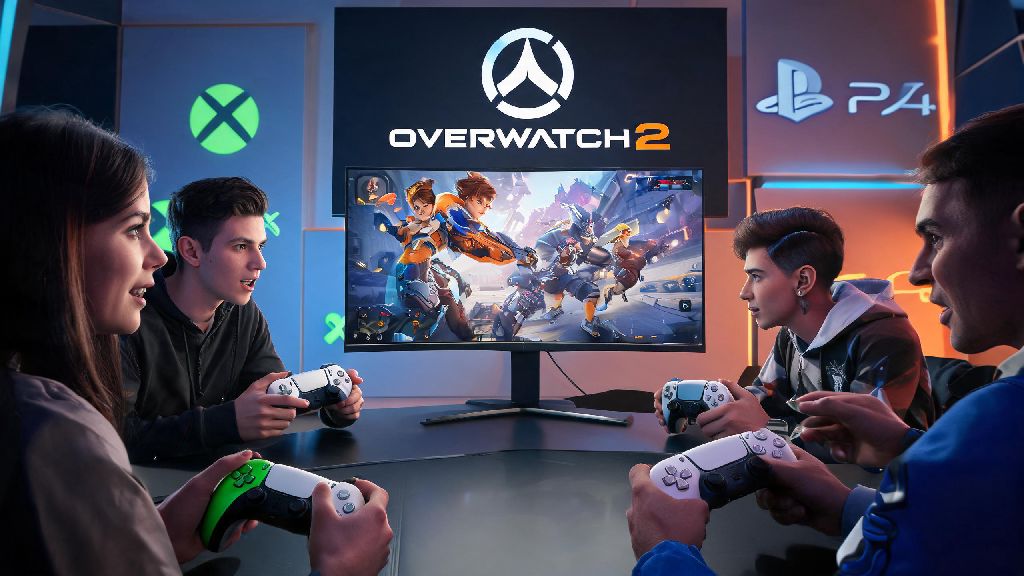
If you’ve ever tried to organize a game night with friends who own different consoles, you’ve probably run into the frustrating question of whether your favorite games support crossplay. Overwatch 2 is one of the most popular team-based shooters on the market right now, with millions of active players across Xbox, PlayStation, PC, and Switch, so it’s no surprise that one of the most common questions new console players ask is can Xbox and PS4 play Overwatch 2 together. Most players don’t want to have to buy a second console just to queue up with their friends, and Blizzard has made big steps to break down platform barriers for its flagship shooter in recent years. This guide will walk you through everything you need to know about crossplay between these two console systems, from setup steps to common limitations you might run into.
Can Xbox and PS4 Play Overwatch 2 Together? Official Crossplay Rules
The short answer is yes, Xbox and PS4 players can absolutely play Overwatch 2 together with no extra hoops to jump through for the most part. Blizzard rolled out full cross-platform support for Overwatch 2 the day the game launched, and that support extends to every generation of console that can run the game, including the original Xbox One, Xbox Series S/X, PS4, and PS5. You don’t need a paid crossplay subscription for Overwatch 2 on console, unlike some other popular shooters that lock crossplay behind a premium service add-on. The only core requirement for crossplay between Xbox and PS4 is that both players have their crossplay setting enabled in their game options, and that both are logged into a valid Battle.net account linked to their console profile. A lot of players assume that older consoles like the PS4 are excluded from crossplay with newer Xbox systems, but that’s not the case at all. The only performance difference you might notice is slightly longer load times on PS4 compared to Xbox Series X, but that doesn’t impact your ability to join the same lobbies or play full matches together.
Simple Steps to Set Up Crossplay Between Xbox and PS4 for Overwatch 2
Setting up crossplay takes less than two minutes if you know where to look, and you only have to do it once unless you reset your game settings later. The process is almost identical on both Xbox and PS4, so you can walk your friend through the steps even if you’re on a different console. Follow these steps to get your group up and running:
The most common mistake people make when adding crossplay friends is typing the wrong 4-digit code at the end of the BattleTag, so double check that before you hit send. If you run into long queue times while waiting for your friend to accept your request or finish up another match, you can pass the time with a quick casual game that doesn’t require a huge time investment. Lots of console players keep low-stakes, short round games on hand for these short wait periods, and Yono Rummy is a popular pick for 5 to 10 minute play sessions that don’t take your focus away from waiting for your group to be ready. Once your friend is in your group, you can queue for any game mode you want, from quick play to competitive to arcade modes, and you’ll all be placed in the same lobby automatically.
Key Limitations You Should Know Before Playing Crossplay
While crossplay between Xbox and PS4 works seamlessly for the most part, there are a few small restrictions you should be aware of to avoid frustration later. First, PC players are not included in console crossplay lobbies by default. If one person in your group is playing on PC, you will all be pulled into PC lobbies, which do not have console aim assist enabled for any players, even those on Xbox or PS4. That can put console players at a big disadvantage, since PC players use mouse and keyboard which has much faster aim response than a controller. Second, in-game purchases like skins, emotes, and currency are tied to your platform account, not your Battle.net account. That means if you bought a legendary skin on your PS4 account, you won’t be able to access it if you log into the same Battle.net account on Xbox, and vice versa. Cross-progression does work for all other account progress, though, so your rank, battle pass level, hero unlocks, and competitive points will carry over across any platform you log into with the same Battle.net account. Third, competitive crossplay groups have a skill tier limit. You can only queue for competitive matches with players who are within 2 skill tiers of your own rank, so a Bronze player can’t queue with a Master player, even if you’re on different consoles. This rule applies to all platforms, not just crossplay groups, so you don’t have to worry about running into wildly unbalanced teams in competitive crossplay lobbies.
Top Tips for Smooth Crossplay Matches Between Xbox and PS4
Now that you know crossplay works and how to set it up, there are a few small tweaks you can make to ensure your matches run as smoothly as possible with no unnecessary hiccups. First, use the in-game voice chat instead of platform-specific party chat. Xbox party chat only works for other Xbox players, and PS4 party chat only works for other PS4 players, so the only way to talk to everyone in your crossplay group at once is to use the built-in Overwatch 2 voice chat. You can adjust voice chat volume levels in the Options menu if some players are too loud or too quiet. Second, console players have access to aim assist by default in all console-only crossplay lobbies, so you don’t have to adjust your usual sensitivity settings when playing with friends on other consoles. The aim assist works exactly the same as it does in non-crossplay lobbies, so you won’t be at a disadvantage just because you’re playing against players on a different console. Third, if you’re experiencing lag or high ping in crossplay lobbies, try restarting your router and closing any other apps running on your console. Crossplay uses a bit more bandwidth than regular console-only matches, so having other streaming apps open in the background can cause connection issues. Finally, if you’re playing with friends who are much higher or lower rank than you, stick to quick play or arcade modes instead of competitive, to avoid ruining your match experience or throwing off your rank progress.
At the end of the day, if you were asking can Xbox and PS4 play Overwatch 2 together, you can rest easy knowing that the process is simple, free, and supported officially by Blizzard. You don’t need any extra hardware or paid subscriptions to play with your friends no matter what console they own, as long as you both have crossplay enabled and add each other via your BattleTags. The small limitations around PC lobbies and platform-locked purchases are easy to work around once you know they exist, and the vast majority of crossplay matches run just as smoothly as console-only matches. Next time you’re organizing a game night with friends on mixed consoles, you don’t have to worry about whether Overwatch 2 will work for your group — just follow the setup steps above and you’ll be queuing up for matches in no time.