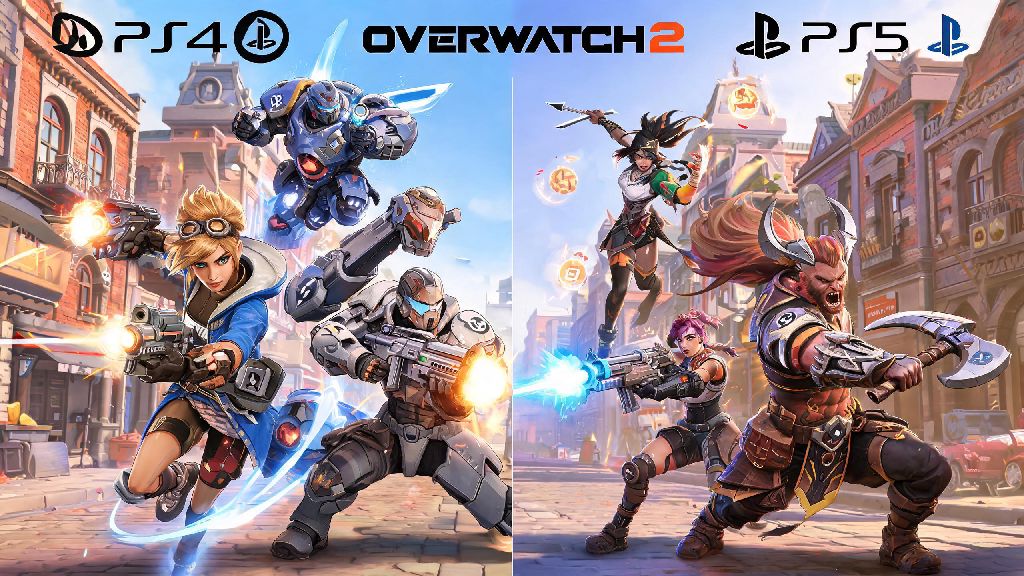
If you’ve got a mix of PS4 and PS5 owning friends in your Overwatch 2 group chat, you’ve almost certainly asked can ps4 and ps5 play overwatch 2 together at least once. Nothing kills pre-game hype faster than realizing half your crew can’t join the same lobby, especially when you’re prepping to climb the competitive ranks or mess around in Quick Play. This guide breaks down everything you need to know about cross-gen play for Overwatch 2 on PlayStation consoles, from setup steps to performance gaps you might notice mid-match. We’ll also cover common issues that pop up with cross-gen lobbies and simple fixes to get you into games faster.
Is Cross-Gen Play Supported for PS4 and PS5 Overwatch 2 Lobbies?
The short answer is yes, full cross-gen play between PS4 and PS5 is natively supported for Overwatch 2, with no extra hoops to jump through for most players. Blizzard rolled out cross-play support for all platforms shortly after the game launched, and Sony has allowed free-to-play titles to offer cross-play without PlayStation Plus subscriptions since 2021, so you don’t even need an active membership to join your friends. You don’t need to pay for any extra upgrades or DLC to play cross-gen with friends on PlayStation, even if you bought a physical copy of the original Overwatch on PS4 years ago.
This support applies to every game mode in Overwatch 2, including Competitive Play, Quick Play, Arcade, custom lobbies, and even limited-time seasonal events. The only time you won’t be able to join a friend’s lobby is if either of you has cross-play manually disabled in your account settings, or if one of you is running an outdated version of the game. There are no platform-specific restrictions locking PS4 and PS5 players out of shared lobbies by default.
Step-by-Step Setup to Join PS4/PS5 Overwatch 2 Lobbies
Setting up cross-gen play takes less than two minutes for most players, as most required settings are turned on by default when you first install the game. The only mandatory step is linking your PlayStation Network account to your Battle.net account, which you may have already done if you played other Blizzard games on console before. If you haven’t linked them yet, you can do it either through the in-game account settings menu or the official Battle.net website in a few clicks.
Follow these simple steps to connect with friends on other PlayStation consoles:
If you’re playing on a child account, you may need to adjust parental control settings first to allow friend requests and cross-play functionality. Make sure both consoles have the latest Overwatch 2 patch installed, as outdated game versions will block cross-gen lobby access and throw a “version mismatch” error when you try to send invites. You can check for updates by highlighting Overwatch 2 on your PlayStation home screen, pressing the options button, and selecting “Check for Update.”
Key Differences Between PS4 and PS5 Overwatch 2 Gameplay
While cross-gen play works seamlessly, there are noticeable performance differences between PS4 and PS5 versions of Overwatch 2 that you’ll notice once you get into matches. The PS5 version runs at a native 4K resolution at 60 frames per second, with optional ray tracing support for select maps that makes lighting and environmental effects look much more realistic. The base PS4 runs the game at 1080p resolution at 30 frames per second, while the PS4 Pro hits 1080p at 60 frames per second with slightly higher texture quality than the base model.
Many players like to take quick 5 to 10 minute breaks between long competitive queues, especially when they’re waiting for all their cross-gen friends to get online and ready to play. Casual low-stakes games that load fast and don’t require much focus are perfect for these short breaks, and lots of console players in the Overwatch 2 community enjoy booting up Rummy Grand for a quick round while they wait. It fits perfectly into short wait windows without pulling you away from your group chat or making you miss a lobby invite.
Blizzard has worked hard to make sure these performance differences don’t create an unfair advantage for PS5 players. Input latency is standardized across all PlayStation consoles for Overwatch 2, so PS4 players won’t be at a reaction speed disadvantage against PS5 users. Load times are significantly faster on PS5, with maps loading 2 to 3 times faster than on PS4, but matches will never start until all players have fully loaded into the lobby, so no one gets a head start moving around the map before the match begins. PS5 players also have access to 3D audio support for better spatial awareness, but this is a quality of life feature, not a competitive advantage, as PS4 players can get similar audio cues from high-end gaming headsets.
Common Cross-Gen Overwatch 2 Issues and Easy Fixes
While cross-gen play is mostly smooth, there are a handful of common issues that players run into when trying to connect PS4 and PS5 lobbies. The most frequent issue is invites not showing up for either player, which is almost always caused by privacy settings or a temporary server glitch. The first fix to try is restarting your game, which will refresh your connection to Overwatch 2’s servers and usually make missing invites pop up immediately. If that doesn’t work, double-check that both players have lobby privacy set to “Friends Only” or “Open” instead of “Invite Only” if you’re not already on each other’s friend lists.
Another common issue is voice chat not working between PS4 and PS5 players. This is usually caused by incorrect in-game voice settings, or PlayStation privacy settings that block voice chat with users outside of your PSN friend list. First, make sure you’re joined to the group voice channel instead of the team voice channel, as team channels only activate once you’re in a match. If you still can’t hear each other, check your PlayStation account privacy settings to make sure voice chat with friends is enabled.
If you keep getting kicked out of cross-gen lobbies mid-match, this is almost always a connection issue rather than a cross-play bug. Try switching from Wi-Fi to a wired ethernet connection for more stable internet, or restart your router to clear up any temporary connection glitches. If you keep getting kicked out of cross-gen lobbies, the most common fix is to unlink and relink your Battle.net account from your PSN profile, which will refresh your account permissions and resolve most authentication errors. Never download third-party "cross-play fix" tools, as these almost always contain malware that can compromise your account security – all common issues have simple, official fixes that don’t require extra software.
At the end of the day, there’s very little stopping you and your mixed PlayStation group from jumping into matches once you know can ps4 and ps5 play overwatch 2 together. The setup process takes less than a minute for most players, and the small performance gaps between consoles don’t impact the fun or fairness of matches. You can easily play hours of competitive or casual matches with your friends, no matter what generation of PlayStation they own, as long as you follow the simple setup steps and troubleshoot minor issues as they pop up. Next time your group chat is planning a play session, you don’t have to worry about anyone being left out because of their console choice.