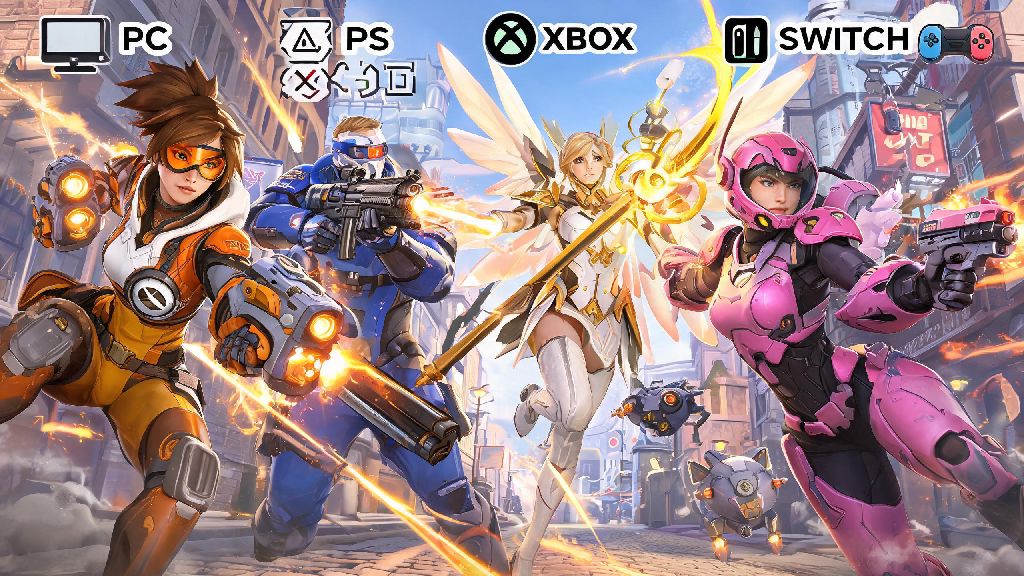
If you’ve ever logged into Overwatch on your console while your friend is playing on PC, you’ve probably wondered: can you play cross platform on overwatch? I’ve spent hundreds of hours queuing with friends across every supported device, so I’m breaking down everything you need to know to make crossplay work for you, no technical expertise required. Crossplay isn’t just a nice-to-have for casual groups, it’s also a great way to cut down on queue times for more competitive modes, if you know how to set it up correctly.
Can You Play Cross Platform on Overwatch for All Game Modes?
The short answer is yes, cross platform play is fully supported for all versions of Overwatch 2, across PC, PlayStation 4/5, Xbox One, Xbox Series X/S, and Nintendo Switch. But there are a few small exceptions depending on what game mode you’re queuing for. Casual quick play, arcade, and co-op missions all support full crossplay with no restrictions, so you can queue with any friend no matter what device they use. Competitive play works too, but console players will only be matched with PC players if they voluntarily join a group that has a PC player in it. That’s a deliberate choice to keep competitive lobbies fair, since mouse and keyboard controls have a notable advantage over controller input for most heroes. If you’re a console player queuing alone, you’ll never be placed in a PC lobby automatically, even if crossplay is enabled on your account. Cross platform play on Overwatch is also disabled for some limited-time competitive tournaments, to ensure all participants are on a level playing field for official events.
How to Enable Crossplay on Your Overwatch Account
Enabling crossplay takes less than 2 minutes, and only has to be done once per account, not per device. First, make sure you’ve linked all your console accounts to your primary Battle.net account, if you haven’t already. You can do this through the Account Settings page on the Battle.net website, or directly through the game’s main menu when you log in on a console. Once your accounts are linked, follow these simple steps to turn on crossplay:
Cross Progression and Cross Platform Limitations You Should Know
One of the biggest perks of linking your accounts for crossplay is that you also get full cross-progression, so you don’t have to start over from scratch if you switch from console to PC, or vice versa. All your unlocked skins, battle pass progress, competitive rank, and in-game currency will sync across every device you use, as long as they’re linked to the same Battle.net account. Cross platform play on Overwatch is designed to be as seamless as possible, but there are a few small limitations you should be aware of before you get started. First, any platform-exclusive skins you earned before you linked your accounts will still only be available on the platform you earned them on, even after linking. For example, a PlayStation-exclusive Soldier: 76 skin won’t show up on your Xbox or PC account, even if all your accounts are linked. You also can’t transfer in-game purchases made on one platform to another if they’re tied to that platform’s store, though most purchases made directly through Battle.net will work across all devices. Another common point of confusion is voice chat: if you’re playing cross platform, you’ll need to use the in-game Overwatch voice chat to talk to friends on other devices, since native console party chat won’t work across different platform ecosystems. If you don’t want to use in-game chat, you can always use a third-party voice app like Discord that works across all devices instead.
Tips for Smooth Cross Platform Play With Friends
I’ve queued for hundreds of cross platform matches with friends across PC, PlayStation, and Switch, and I’ve picked up a few tricks to make the experience run far more smoothly with zero frustrating hiccups. First, make sure all your friends have added your Battle.net display name (including the 4-digit number at the end) to their friends list, not just their platform-specific friends list. You can find your display name in the top right corner of the main menu, and you can send friend requests directly through the game’s social tab no matter what device you’re on. If you’re playing competitive cross platform with a mix of PC and console players, adjust your team composition to play to everyone’s strengths. Controller players often excel at heroes that require tracking, like Tracer, Winston, or Mercy, while mouse and keyboard players tend to perform better on precision heroes like Widowmaker, Hanzo, or Ashe. That’s not a hard rule, of course, but it’s a good starting point if you’re trying to build a balanced team. Cross platform play on Overwatch is far more enjoyable when you plan around your group’s different control schemes, so don’t be afraid to test out different hero combinations to see what works best for your team. You should also make sure everyone has their crossplay privacy settings set to allow friend invites, otherwise you might not be able to send invites to users on other platforms. If you’re running into lag during cross platform matches, try turning off crossplay and queuing alone first to see if the issue is with your connection, or if it’s tied to a cross platform lobby issue. Most of the time, lag comes from individual user connections, not the crossplay system itself, so having each member of your group run a quick internet speed test before queuing can save you a lot of frustration mid-match.
At the end of the day, the answer to can you play cross platform on overwatch is a resounding yes, with very few hoops to jump through to get it set up. Whether you’re queuing for casual arcade games with a group of friends across 3 different devices, or you’re switching between PC and console when you travel, crossplay and cross-progression make it easier than ever to enjoy the game on your own terms. Just remember to double check your account links before you start, and don’t be afraid to tweak your crossplay settings if you want to adjust your matchmaking pool to fit your playstyle. If you run into any issues linking accounts, the official Overwatch support site has step-by-step troubleshooting guides for every supported platform to get you back in a match fast.