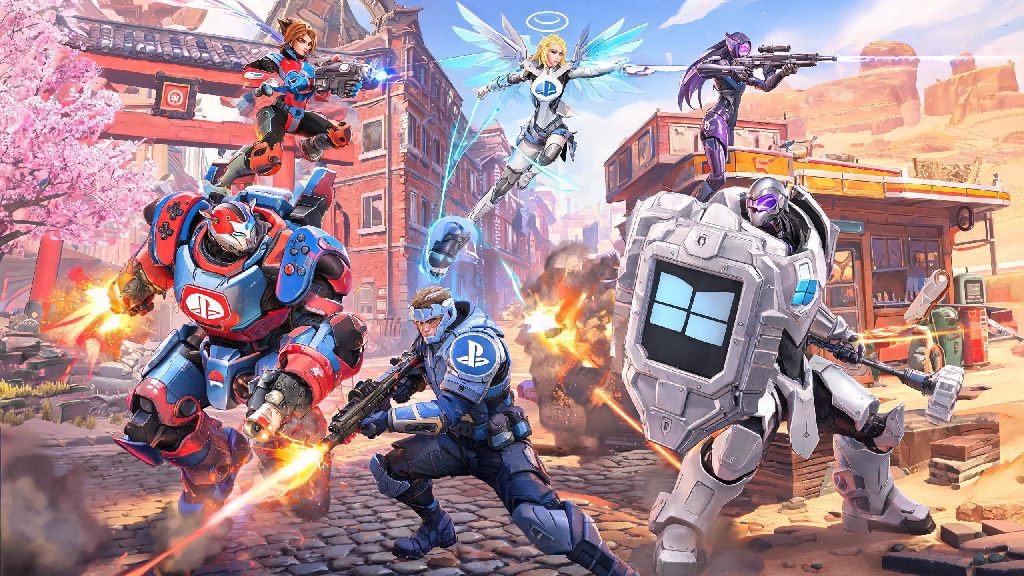
If you’ve ever hopped into an Overwatch queue on your PlayStation only to realize your best friend only plays on PC, you’ve probably asked can you cross platform play Overwatch without running into a bunch of annoying roadblocks. For years, crossplay was a pipe dream for most competitive multiplayer games, but Overwatch 2 changed that when it rolled out full cross platform support across all major devices. I’ve tested crossplay across every platform over the past year, so I’m breaking down exactly what works, what doesn’t, and how you can avoid the most common frustrations that pop up when playing across devices.
Can You Cross Platform Play Overwatch Across All Devices?
The short answer is yes, you can play Overwatch cross platform across every supported device, with only a small handful of minor restrictions. All current and last-gen Overwatch-supported devices support crossplay by default, so you don’t have to download any extra updates or pay for a special subscription to access the feature outside of your standard console online play membership. Supported platforms include PC (both Battle.net and Steam launchers), PlayStation 4 and 5, Xbox One, Xbox Series S and X, and Nintendo Switch.
The only caveat here is that crossplay is only available for Overwatch 2, not the original 2016 Overwatch client, which is no longer supported by Blizzard. If you’re still playing on a legacy copy of the original game, you’ll need to update to the free-to-play Overwatch 2 client to access crossplay features. I’ve played cross-platform with friends on Switch and PC regularly for both ranked and quick play, and the only platform-specific restriction I’ve run into is for custom game modes that use third-party mod tools, which only work on PC.
How to Enable Crossplay and Join Cross Platform Lobbies
Crossplay is enabled by default on most new accounts, but you’ll need to complete one key step before you can play with friends on other devices. Linking your Battle.net account is non-negotiable for crossplay access, so don’t skip that step. You can link all your console accounts to a single Battle.net account via the account settings tab on any platform, or directly through the Battle.net website. Once linked, your progress, skins, and in-game currency will sync across all devices too, so you don’t lose any progress when you switch from your console to PC.
Once your accounts are linked, joining a cross platform lobby is straightforward. You can add friends from any device using their full Battle.net gamertag (the name plus the 4-digit number attached to it), rather than their platform-specific username. To make the process even easier, follow these quick steps:
Most players don’t run into any issues when they first try cross platform play for Overwatch, but a small settings tweak is usually all you need to fix any problems that pop up. If you don’t see an invite pop up, it’s usually because one of you has crossplay disabled in the settings menu. I’ve had this happen a few times with friends who turned off crossplay to avoid PC players in ranked queues, so double check that first before troubleshooting anything else. You don’t need to re-link your accounts every time you switch devices – once you connect them once, they stay linked unless you manually unlink them from your Battle.net account page.
Key Crossplay Restrictions and Limitations to Know
While crossplay works for nearly all game modes, there are a few limitations you should be aware of before you queue with cross platform friends. The biggest one relates to ranked play pools: if you’re playing in a group that includes at least one PC player, your entire lobby will be placed into the PC crossplay pool, which means console players in the group may be matched against mouse and keyboard players. Crossplay ranked pools are split by input type, not just device, so controller players on PC will be matched with console controller players most of the time, while mouse and keyboard players are in their own pool to keep matches fair.
Another limitation is that some platform-exclusive skins and in-game items won’t transfer across devices, even with cross-progression enabled. For example, a PlayStation-exclusive Tracer skin you got from a PlayStation Plus promotion will only be visible when you’re playing on PlayStation, even if your account is linked to other devices. Custom game modes that use PC-only mod tools also won’t work for console players, so if you’re hosting a custom lobby with mods, only your PC friends will be able to join.
If you’re playing on Nintendo Switch, you might also notice slightly longer queue times for crossplay ranked modes, since the Switch player base is smaller than other platforms. I usually switch to quick play when I’m on Switch and playing with PC friends, since ranked queues can take 10+ minutes sometimes, which is way longer than the 2-3 minute wait on PlayStation or Xbox. You can turn off crossplay at any time if you only want to match with players on your same device, but that will increase queue times significantly for most modes, especially for less popular game types like Push or Flashpoint.
Fixing Common Cross Platform Play Issues
Even with smooth setup, you might run into a few common issues when playing cross platform. The most frequent one is invites not showing up for people in your group. First, confirm that everyone in the group has crossplay enabled in their gameplay settings, and that you’ve added each other via Battle.net tags, not just platform-specific friends lists. A lot of players add their friends on PlayStation or Xbox first and wonder why they can’t invite them to crossplay lobbies, so that’s an easy fix.
Voice chat not working is another super common issue in crossplay groups. Most voice chat issues in crossplay lobbies come from console privacy settings blocking cross platform communication, so head to your console’s system settings to adjust that if you can’t hear your friends. You’ll need to enable cross platform communication in your console’s privacy and safety menu, not just in the Overwatch in-game settings, to get voice chat working across devices.
If you get a “queue disabled” error when trying to play ranked with cross platform friends, don’t assume it’s a crossplay bug. SR restrictions for ranked play apply to cross platform groups exactly the same way they apply to same-platform groups, so you won’t be able to queue with a Bronze friend if you’re Grandmaster, no matter what devices you’re on. If you’re getting constant lag in crossplay lobbies, make sure you’re connected to a server that’s close to most people in your group – you can change your preferred server region in your gameplay settings to fix that, and it usually cuts lag by 50% or more for cross platform groups.
At the end of the day, if you were wondering can you cross platform play Overwatch with friends no matter what device they use, the answer is a resounding yes, as long as you take a few minutes to set up your accounts correctly. Crossplay has made it way easier to play with friends without needing to buy the same console or upgrade your PC, and the small restrictions that do exist are easy to work around once you know what to look for. Next time you’re planning a group queue, don’t let different devices stop you from hopping into a match together.