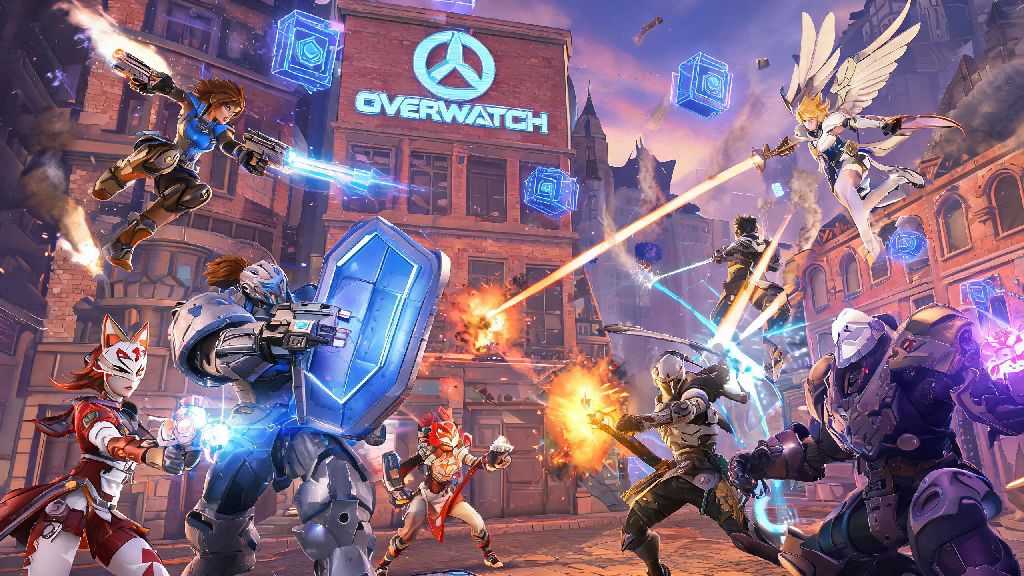
If you’ve ever tried to coordinate a game night with friends split between PC and Xbox, you’ve probably run into a dozen roadblocks from incompatible game versions to locked crossplay features. One of the most common questions I get from new and returning Overwatch 2 players is can pc and xbox play together on overwatch 2, especially since the game switched to free-to-play a while back. I’ve tested crossplay across 3 different Xbox accounts and 2 PC accounts over the last year, so I’ve got all the official rules, setup steps, and troubleshooting tips you need to get your group queued up without hassle.
Can PC and Xbox Play Together on Overwatch 2: Official Crossplay Rules
The short answer is yes, full cross-platform play is supported between all PC and Xbox versions of Overwatch 2, with no extra purchases or paid DLC required to access the feature. This includes PC copies purchased on both Steam and Battle.net, as well as all Xbox hardware from the original Xbox One to the latest Series S and Series X consoles. Crossplay is enabled by default for all new accounts, so you won’t have to dig through settings just to see cross-platform friends in your lobby. Cross-progression is fully supported between PC and Xbox too, so any skins, battle pass progress, or competitive ranks you earn on one platform will carry over to the other as long as you’re signed into the same Battle.net account on both. I first tested this when my younger cousin got an Xbox Series S for his birthday last year, and we were able to queue for quick play together less than 10 minutes after he finished downloading the game, no extra setup needed.
Step-by-Step Setup to Queue PC and Xbox Players Together
While crossplay is enabled by default, there are a few simple steps you need to follow to make sure you can add and invite friends across platforms. I’ve broken down the exact process I use whenever I set up a new group for my weekly Overwatch 2 game nights:
You don’t need an Xbox Live Gold subscription to play Overwatch 2 crossplay on Xbox, either. Microsoft dropped the Gold requirement for all free-to-play games back in 2021, so you can jump into matches even if you only have a free Xbox account. The most common mistake I see new players make is trying to add platform gamertags instead of Battle.net tags, so double check you have the full tag including the numbers at the end if you can’t find your friend.
How Matchmaking Works for Mixed PC and Xbox Lobbies
A lot of players worry that crossplay between PC and Xbox will lead to unfair matches, since mouse and keyboard players have a natural advantage in aim speed and precision. Blizzard addressed this concern a while back with input-based matchmaking, which prioritizes your control method over your platform when building lobbies. Overwatch 2 uses input-based matchmaking first for all crossplay lobbies, so if everyone in your group is using a controller (even the PC players), you’ll be matched against almost entirely other controller players, regardless of their platform. If even one player in your group is using mouse and keyboard (either on PC or Xbox, since Xbox supports native mouse and keyboard input), the entire group will be placed in the mouse and keyboard matchmaking pool to avoid lopsided matches. You’ll also notice slightly longer queue times for mixed input groups, usually 1-2 minutes longer than single-input groups, but that’s a small tradeoff for fairer matches. You can opt out of crossplay entirely if you only want to play against other Xbox players, but you won’t be able to queue with your PC friends if you have this setting turned on. Competitive ranks are also tied to input type, so if you switch from controller on Xbox to mouse and keyboard on PC, you’ll have to complete new placement matches for that input method, and your rank won’t carry over.
Tips for Smoother Crossplay Between PC and Xbox Players
Even with the built-in crossplay tools, there are a few small adjustments you can make to ensure your matches run smoothly and your group has the best possible experience. First, if you’re an Xbox controller player queuing with PC mouse and keyboard friends, take a few minutes to adjust your controller sensitivity to match the faster pace of mouse and keyboard lobbies. Aim assist is enabled for all controller players in crossplay lobbies, even against mouse and keyboard opponents, so don’t turn that off unless you specifically prefer playing without it. Second, use the in-game voice chat instead of platform-specific party chat. Xbox party chat won’t include PC players unless you have the Xbox app installed on your PC, which is notoriously buggy for cross-platform calls. The in-game voice chat works seamlessly across all platforms, just make sure your mic is enabled in your audio settings and you’re joined to the group voice channel. Third, if you’re playing competitive mode, make sure all players in your group are within one skill tier of each other. The same rank restriction applies to cross-platform groups as same-platform groups, so a Bronze player can’t queue with a Platinum player, for example. If you run into lag or connection issues during matches, have all players switch to a wired internet connection if possible. I’ve had multiple groups where lag was so bad we couldn’t play, and switching one player from spotty Wi-Fi to an ethernet cable fixed the issue entirely. You can also enable QoS settings on your Xbox or router to prioritize game traffic over other devices on your network.
If you’ve been holding off on playing Overwatch 2 with friends because you weren’t sure if cross-platform play was supported, you don’t have to wait any longer. The answer to can pc and xbox play together on overwatch 2 is a clear yes, with very few hoops to jump through to get your group set up and queued for matches. The input-based matchmaking system keeps matches fair regardless of platform, and cross-progression means you don’t have to start over if you switch between PC and Xbox regularly. Just double check you have crossplay enabled, add friends via their Battle.net tags, and you’ll be playing together in no time.